How to Update APK Apps on Android
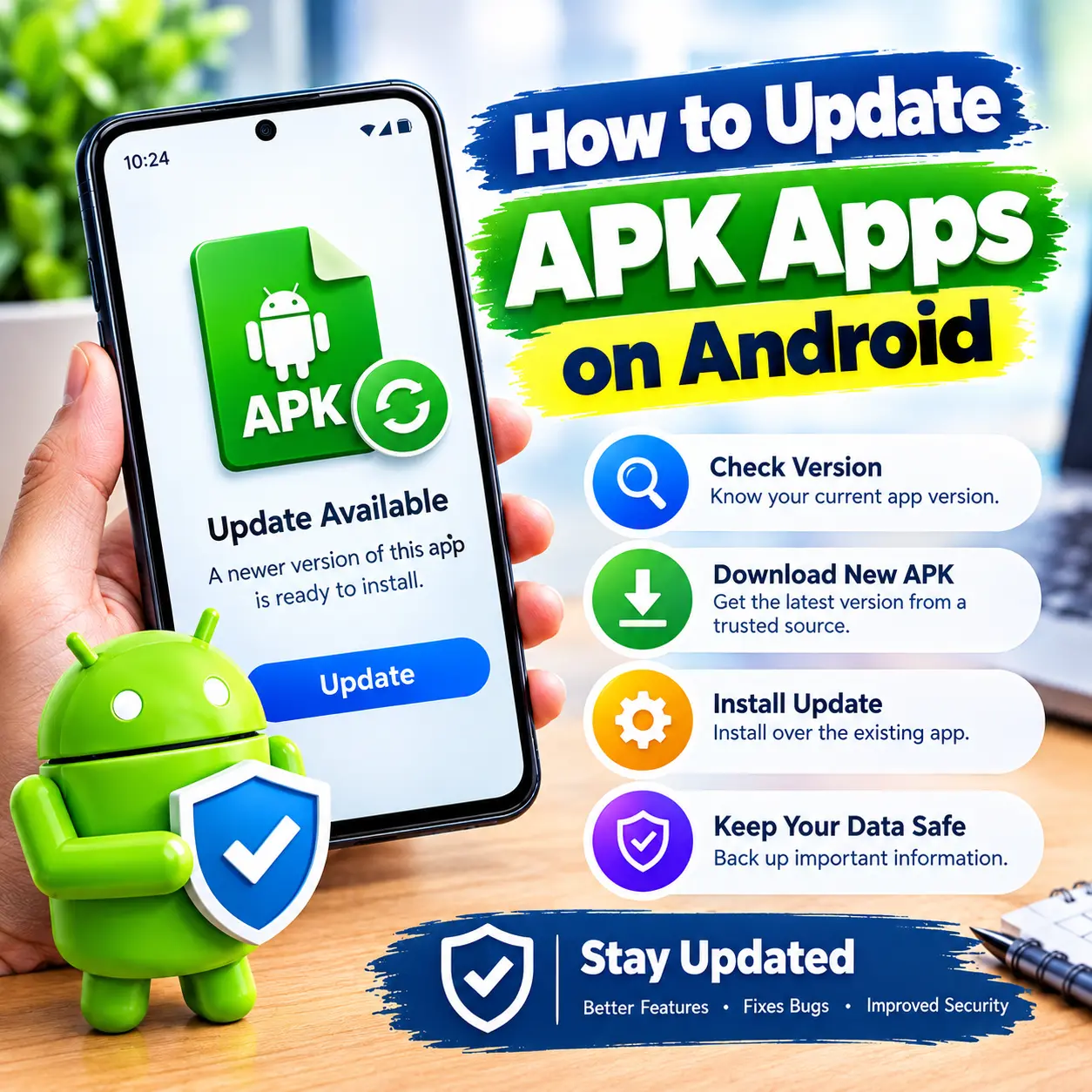
Updating an APK app on Android is usually simple. If you installed an app manually using an APK file, you can update it by downloading a newer version and installing it over the existing app. Before updating, check the app version, developer, Android requirements, and download source to make sure you are getting the correct file.
Table of Contents
Check Your Current App Version
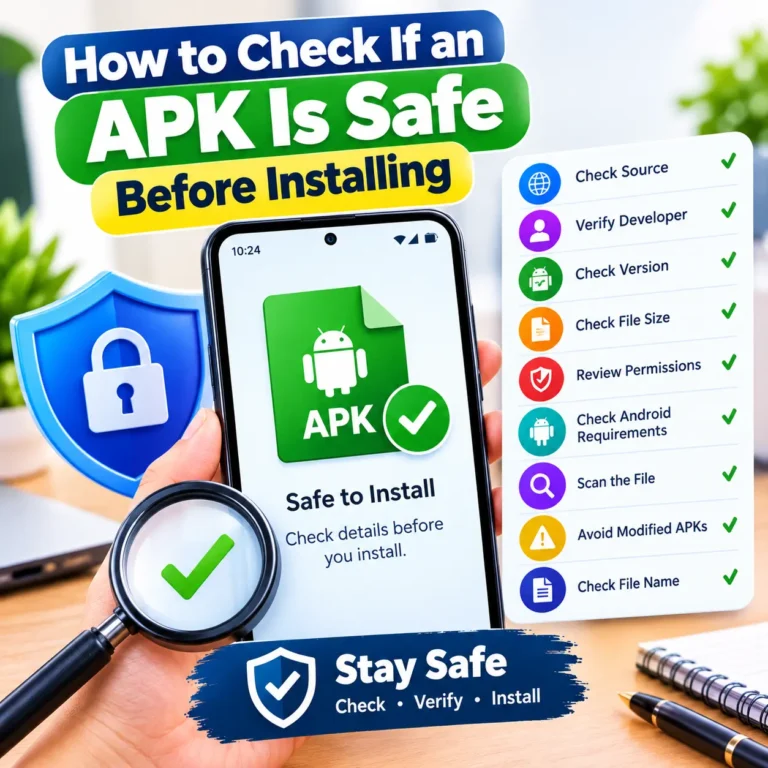
First, check which version of the app is currently installed on your phone. You can usually find this in the app settings or by going to Settings > Apps and selecting the app. Note the current version so you can compare it with the newer APK before downloading the update. Before updating your App, check your APK is safe or not?
Find a Newer APK Version
Look for a newer version of the APK from a reliable source. Check the app name, developer, version number, file size, and Android requirements before downloading. Make sure the APK is for the same app you already have installed. Avoid pages with unclear app information or misleading download buttons.
Download the Updated APK
Once you find the correct version, download the APK file to your Android phone. Make sure the download finishes properly before trying to install it. If the file is incomplete or damaged, the update may fail during installation.
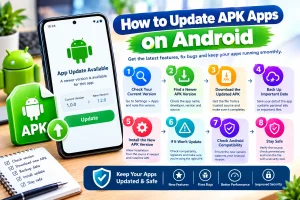
Back Up Important Data
Before updating an app, consider backing up any important information stored inside it. This is especially useful for apps that contain personal files, saved progress, or other important data. Normal APK updates usually keep the existing app data, but having a backup is a useful precaution.
Install the New APK Version
Open the downloaded APK file and start the installation. If Android asks you to allow installation from that source, enable the required permission and continue.
For an update to work, the new APK normally needs to be for the same app and signed with the same signing key as the installed version. If these do not match, Android may not allow the update.
What If the APK Will Not Update?
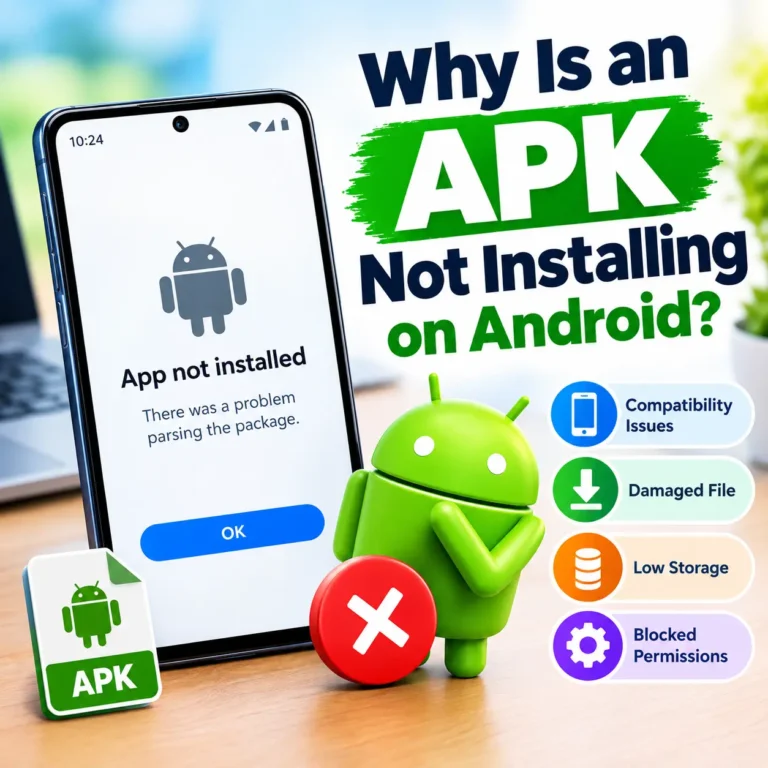
Sometimes Android may show an App not installed message when you try to update an APK. This can happen if the APK is not compatible with your device or does not match the installed app. The problem can also occur if the new APK has a different signature from the version already installed on your phone.
Avoid Installing an Older Version
Be careful when downloading an older APK version. Android may not allow you to install an older release over a newer version because it can be treated as a downgrade.
If you need an older version, you may have to remove the current app first. Keep in mind that uninstalling an app can remove its stored data.
Check Android Compatibility
Before updating, check whether the new APK supports your Android version. A newer app version may require a newer Android release than the one on your phone. Checking compatibility first can save you from downloading an APK that will not work properly on your device.
Is It Safe to Update an APK Manually?
Manual APK updates depend on where the file comes from. Before installing an update, check the source, developer name, version, permissions, and other app details.
You can also scan the downloaded APK with a trusted security tool before opening it. If the file looks suspicious or you cannot verify its source, do not rush to install it.
APK Update vs Google Play Store Update
Apps installed from the Google Play Store can usually be updated directly through the Play Store. An app installed manually with an APK may need to be updated manually using a newer APK file.
The update method can also depend on how the app was originally installed and whether the new version matches the existing installation.
When Should You Update an APK?
Updating can be useful when a newer version fixes problems, adds features, or improves compatibility with your Android device.
You do not always need to install every new version immediately. Check the version information and download source first, especially when getting an APK outside the Google Play Store.
Final Thoughts
Updating an APK app on Android is usually straightforward. Check your current version, find the correct newer APK, download it from a reliable source, and install it over the existing app. If the update fails, check the Android requirements, file type, app version, and whether the new APK matches the installed version.

Ahsan Malik
Ahsan Malik is a dedicated content writer at APKFreeGames.pk, where he covers Android games, APK files, gaming apps, and the latest mobile gaming trends. He focuses on creating clear, simple, and useful content that helps readers understand game features, installation steps, updates, and important information before downloading an APK. With a reader-first approach and attention to accuracy, Ahsan aims to provide reliable and easy-to-understand gaming guides that add real value to the user experience.