How to Install APK Files on Android
Installing an APK file on Android is usually a simple process. You may need an APK when an app is not available on the Google Play Store, you want an older version, or you have downloaded an app from another source.
Before installing an APK, check the app name, developer, version, Android requirements, and download source. This can help you avoid installing a file that is not suitable for your phone.
Table of Contents
What Is an APK File?
PK stands for Android Package Kit. It is the file format Android uses to install apps on phones and tablets.
When you download an Android app from a website instead of the Google Play Store, you will usually receive an APK file. Opening the file allows Android to install the app on your device.
Guidelines to Install APK file
The installation process may look slightly different depending on your Android version and phone brand, but the basic steps are usually the same.
Download the APK File
Download the APK file to your Android phone and open the Downloads folder to find it. Check the file name before opening it and make sure it is the app you intended to download.
Open Your Downloads Folder
Open Files, File Manager, or My Files on your phone and go to the Downloads folder. Find the APK file you downloaded and tap it to start the installation.
Allow Installation From That Source
If Android blocks the installation, you may need to allow your browser or file manager to install apps from that source. Open Settings, find Install unknown apps, select the app you used to download the APK, and turn on Allow from this source.
Install the APK
Go back to the APK file and tap it again. When the installation screen appears, tap Install and wait for Android to finish installing the app.
Open the App
Once the installation is complete, tap Open to launch the app, or find its icon in your app list. If the app asks for permissions, check them carefully before allowing access.

Why Is My APK Not Installing?
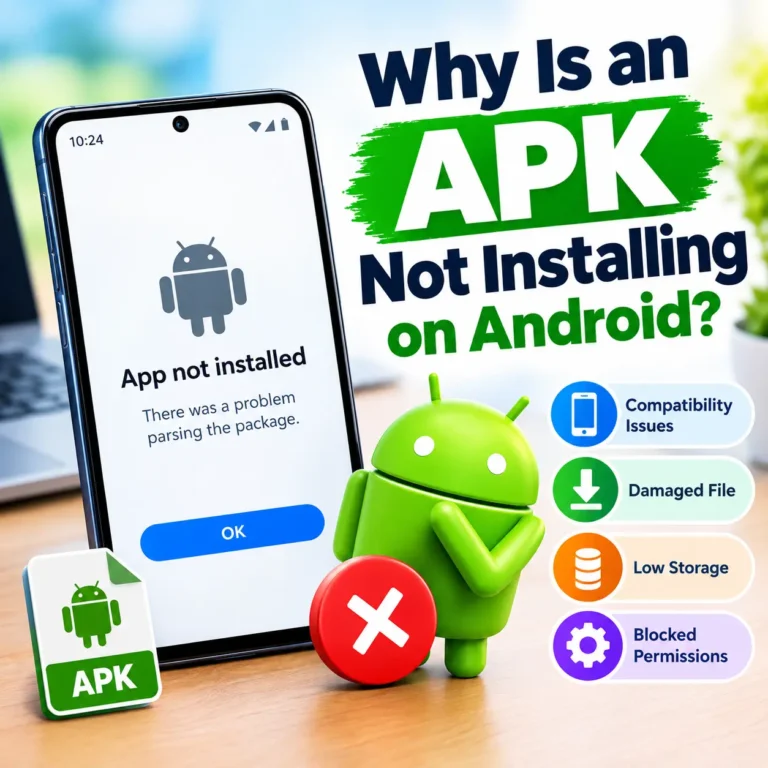
An APK may fail to install for several reasons. The file could be damaged, your phone may not have enough storage, or the APK may not support your Android version.
Another common reason is that installation from the selected source is blocked. Check your Install unknown apps settings and make sure the browser or file manager you used has permission.
If another version of the same app is already installed, you may also experience a version or signing conflict. In that case, check whether the APK is compatible with the version already on your phone.
It Safe to Install APK Files?
An APK is simply an app installation file, but the source of the file is important. Before installing one, check the developer, app name, version, permissions, and website where you downloaded it.
Be careful with files from unknown sources, especially if they make unusual claims or request permissions that do not seem necessary. You can also scan a downloaded file with a trusted security tool before opening it.
How to Check an APK Before Installing
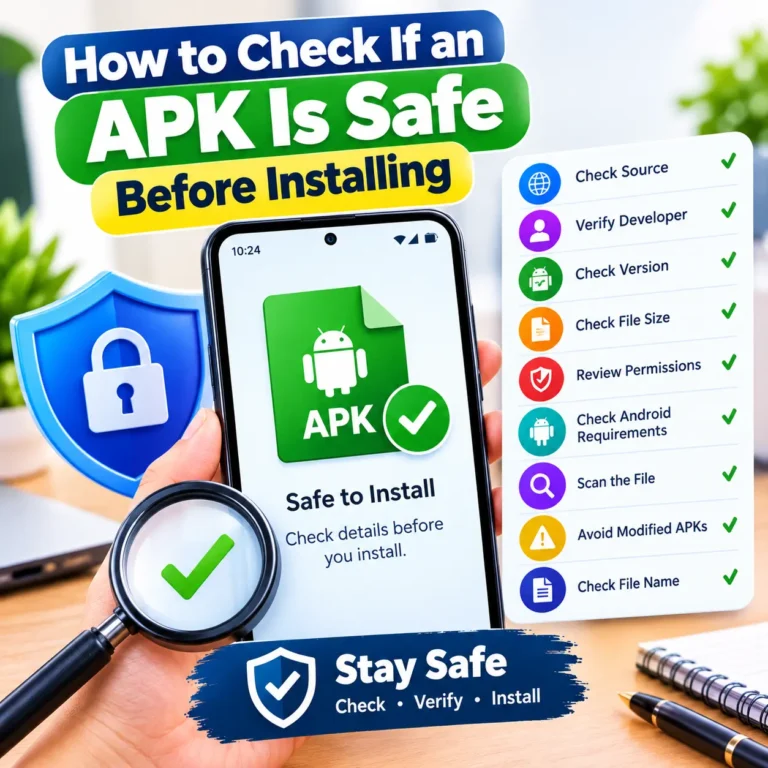
Start by checking the developer name, version, file size, and Android requirements. Make sure the information matches the app you are looking for.
It is also useful to review the permissions requested by the app. If the requested access does not seem related to what the app does, take a closer look before installing it.
Finally, pay attention to the website providing the APK. Avoid suspicious download buttons, excessive popups, or files that do not match the app description.
Can You Install APKs Without Google Play Store?
Yes. Android allows users to install apps from outside the Google Play Store. This process is commonly called sideloading. You normally need to download the APK and allow your browser or file manager to install apps from that source. The exact setting can vary between Android versions and phone brands. Because the app is coming from outside the Play Store, it is important to check the APK and its source before installing it.
How to Uninstall an APK App
An app installed through an APK can normally be uninstalled like any other Android app. Go to Settings > Apps, select the app, and tap Uninstall.
On many phones, you can also press and hold the app icon and choose the uninstall option. Keep in mind that uninstalling an app may remove data stored locally on your phone.
Final Thoughts
Installing an APK on Android only takes a few steps. Download the file, open it from your Downloads folder, allow installation from the source if needed, and tap Install. If the APK does not install, check your Android version, available storage, installation permissions, and the APK file. Before installing any APK, always pay attention to the download source and check the app information.

Ahsan Malik
Ahsan Malik is a dedicated content writer at APKFreeGames.pk, where he covers Android games, APK files, gaming apps, and the latest mobile gaming trends. He focuses on creating clear, simple, and useful content that helps readers understand game features, installation steps, updates, and important information before downloading an APK. With a reader-first approach and attention to accuracy, Ahsan aims to provide reliable and easy-to-understand gaming guides that add real value to the user experience.